Permissions
Permissions in Firetower are built from four layers: People, Teams, Directories and Resources. Each answers a different question, and together they cover everything from "who can add a colleague" to "who can touch this one machine".
People
Everybody who can sign in to this Firetower.
- Admin
- Runs the organisation: adds and removes people, makes teams and directories, updates Firetower.
- Member
- Does their own work, and whatever has been shared with them.
Neither one is access to a colleague's work. That is decided entirely below.
belong to any number of
Teams
A named group of people, so access is handed to a group rather than to one person at a time.
- Everyone
- Every person in the organisation, kept current by itself. It has no list to maintain.
- yours
- Any team you make: a list you keep, read at the time it is used rather than copied.
a person or a team is given one level on
Directories
A place to put things so other people can reach them. You give access to the directory, not to each thing in it.
- viewer
- See what is in it.
- editor
- Work with what is in it, and put their own things into it.
- admin
- Decide what happens to what is in it, including taking things out.
which holds
Resources
The things Firetower manages. Every one of them is yours the moment you make it.
- Machines
- Subscriptions
- API keys
- Workspaces
- Repositories
A new resource starts in its owner's own directory, written u/their-name, where nobody else can see it.
#People
Everybody in your organisation is either an Admin or a Member.
An Admin can add and remove people, change anybody's role, reset a password, create and manage teams and directories, register the GitHub application your organisation signs in through, and upgrade Firetower itself.
A Member does their own work. They add machines, connect accounts and start workspaces, plus everything they have been given access to.
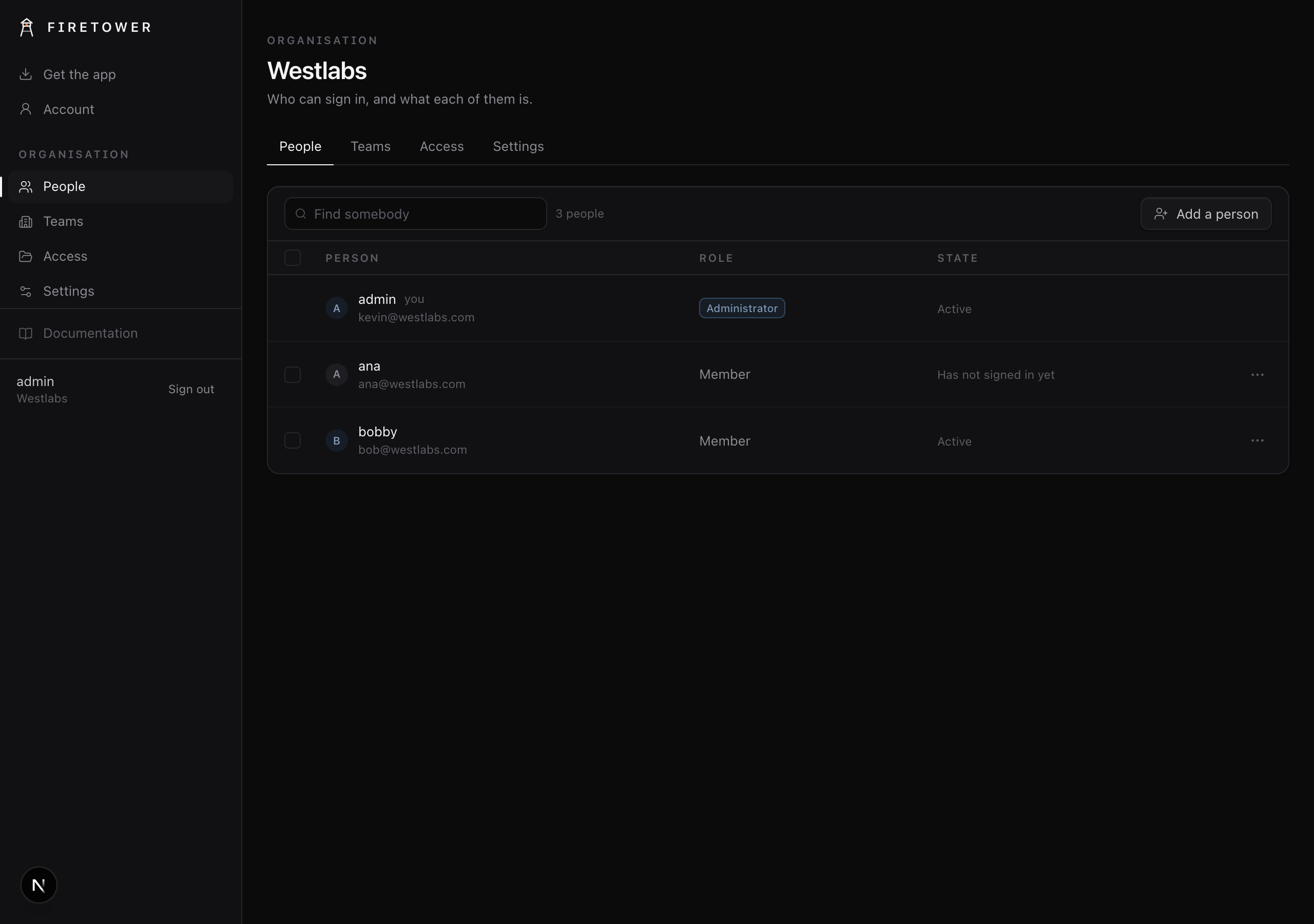
People, in the web administration panel. Adding somebody gives you a password to pass on; they choose their own the first time they sign in.
Note
This role is only about running the organisation. It is not a shortcut to other people's work: an Admin does not automatically get access to a colleague's machines, subscriptions or workspaces. Those are decided entirely by the layers below.
#Teams
A team is a group of people. Anyone can belong to as many teams as you like, and a person's access is always the most generous of everything they belong to.
Every organisation has one team called Everyone, which is exactly what it sounds like. You never have to maintain it: whoever is in your organisation today is in it.
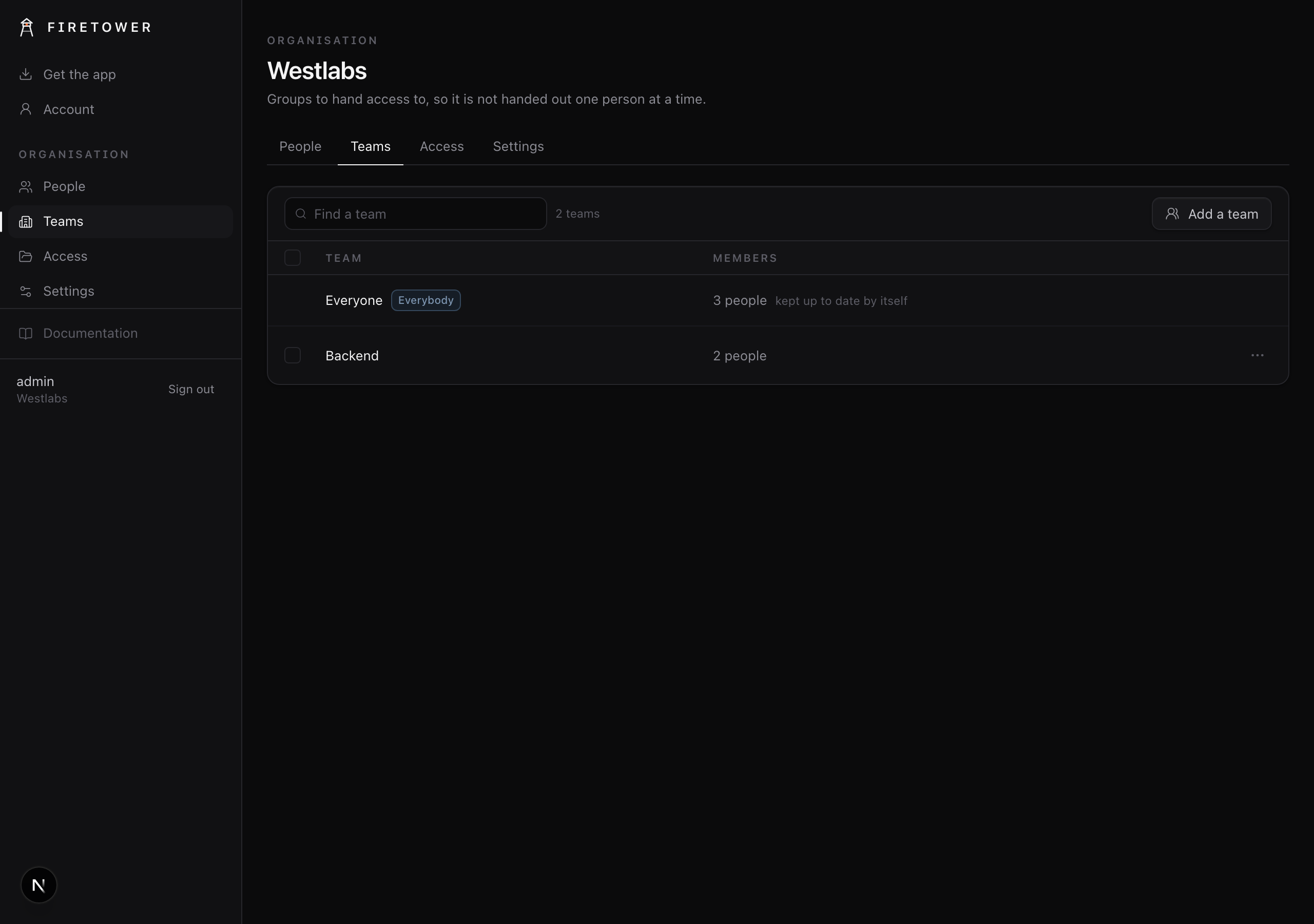
Everyone is kept up to date by itself. Any other team you make is a list you keep.
#Directories
A directory is a place to put things so other people can reach them. You give access to a directory, not to each thing inside it.
Both people and teams can be given one of three levels:
| Level | What it allows |
|---|---|
| Viewer | See what is in the directory |
| Editor | Work with what is in it, and put their own things into it |
| Admin | Decide what happens to what is in it, including removing things |
The difference between Editor and Admin is the one worth remembering. An Editor can add their own things to a directory, but cannot take anybody else's out. That is what stops one person removing a server the whole team is working on.
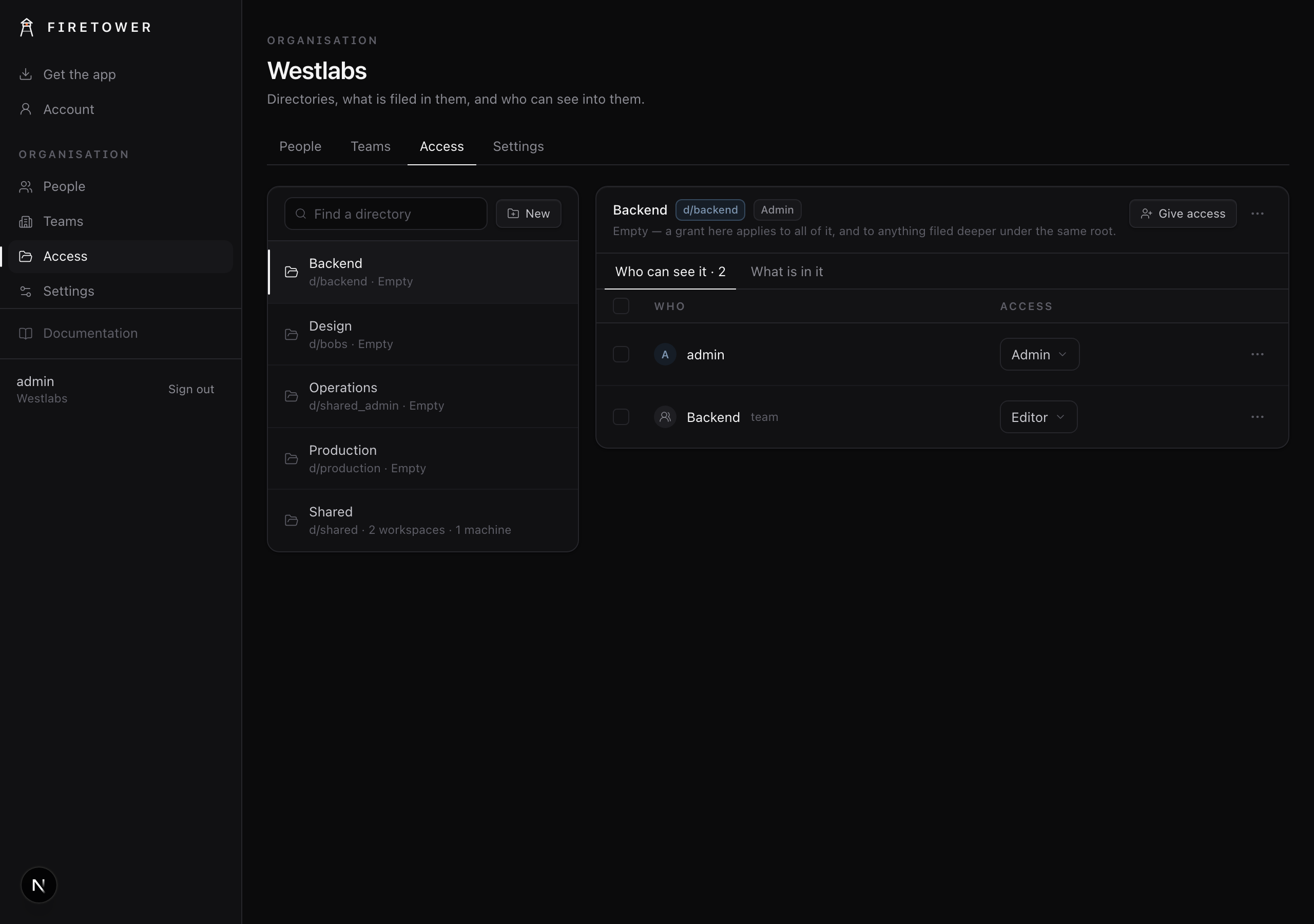
Access lists every directory, what is filed in it, and who reaches it. An empty one is a directory nobody has put anything in yet.
#Resources
Resources are the things Firetower manages:
- A machine you add for agents to run on
- A Claude or Codex subscription you have connected
- An API key, such as a Linear key
- A workspace, where agents do work
- A repository you have connected
Every resource is yours the moment you create it. It goes into your personal
directory, written as u/your-name, and nobody else can see it until you
decide otherwise.
#Directories and ownership
Ownership follows the directory.
When a resource is strictly yours, it sits in your own directory and you decide everything about it.
When you move a resource into a shared directory, it becomes the directory's. From then on, whoever has Admin there decides what happens to it, whether that is a person or a team. Editors can use it and add alongside it. Viewers can see it.
This is why moving something into a directory is a real decision rather than a convenience. You are handing it over.
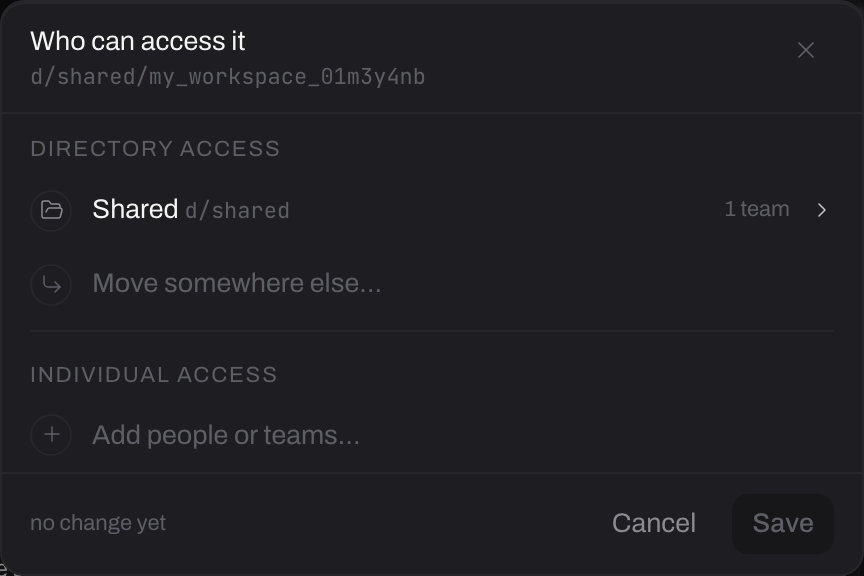
Both ways of sharing live in one panel. The top half is where the thing lives. The bottom half is everybody named on this one item, which is the next section.
#How to arrange them
There is no right answer, and the shape worth copying depends on how many of you there are. Organise your resources walks through three sizes, from one person to a fleet with two teams on it.
#What stays yours, always
Nothing in your personal directory can be taken by anyone, including an Admin.
This is deliberate and absolute. Your own secrets, your own machines, your own workspaces are not transferable by somebody else. An organisation Admin cannot move them, hand them to a colleague, or claim them.
The one thing an Admin can do is delete what is in your personal space when they remove your account entirely. The account is going, so the things in it go with it. What they can never do is pass them on to somebody else, because that is the one outcome you never agreed to.
If you want to hand something over, you move it yourself.
#Repositories are always personal
Repositories work slightly differently, on purpose.
A repository is opened with your GitHub account, so it belongs to you and cannot be put into a directory at all. If two people work on the same codebase, each connects it themselves and each gets their own settings: their own setup script, their own variables.
This means a colleague never gains access to a repository through Firetower that GitHub has not already given them.
#Extra permissions
Directories are how you share a body of work with a group. Sometimes you just want to show one colleague one thing.
That is what extra permissions are for. On any single resource you can name a specific person, or a specific team, and give them Viewer or Editor access to that one item, without moving it anywhere and without changing who owns it.
Without one
u/bob
- fix-login, a workspace
Kevin cannot see it. To show him, Bob would have to move it into a directory they are both in, and it would stop being his.
With one
u/bob
- fix-login, a workspace
- kevin · viewer
Nothing moved, it is still Bob's, and he can take the permission back whenever he likes.
- The resource stays exactly where it is, and stays yours.
- You can give Viewer or Editor this way, but not Admin. Letting somebody into one thing is not the same as putting them in charge of it. If you want that, share the directory it lives in.
- You can take it back at any time.
Use a directory when a group needs an area to work in. Use an extra permission when one person needs one thing.
Sharing a resource walks through both, with the screen that does it.
#Two things to be aware of
Sharing a workspace shares its files. Anyone who can see a workspace can see what is in it, including environment variables written into it. If a repository's variables hold production secrets, sharing a workspace built from it shares those too.
Agents in one workspace share one folder. Two agents working in the same workspace at the same time are editing the same files and can overwrite each other. Sometimes that is exactly what you want, and it is worth knowing before it surprises you.