Users and teams
Adding a person takes one form and hands you one password. The password is temporary by design: they are signed in and allowed to do exactly one thing with it, which is replace it. Everything else waits until they have. Teams come after that, and exist so access is handed to a group rather than to one person at a time.
#Where it is
Organisation → People, in the web administration panel of your control plane. It is an administrator's screen, and it is the full list of who can sign in to this Firetower.
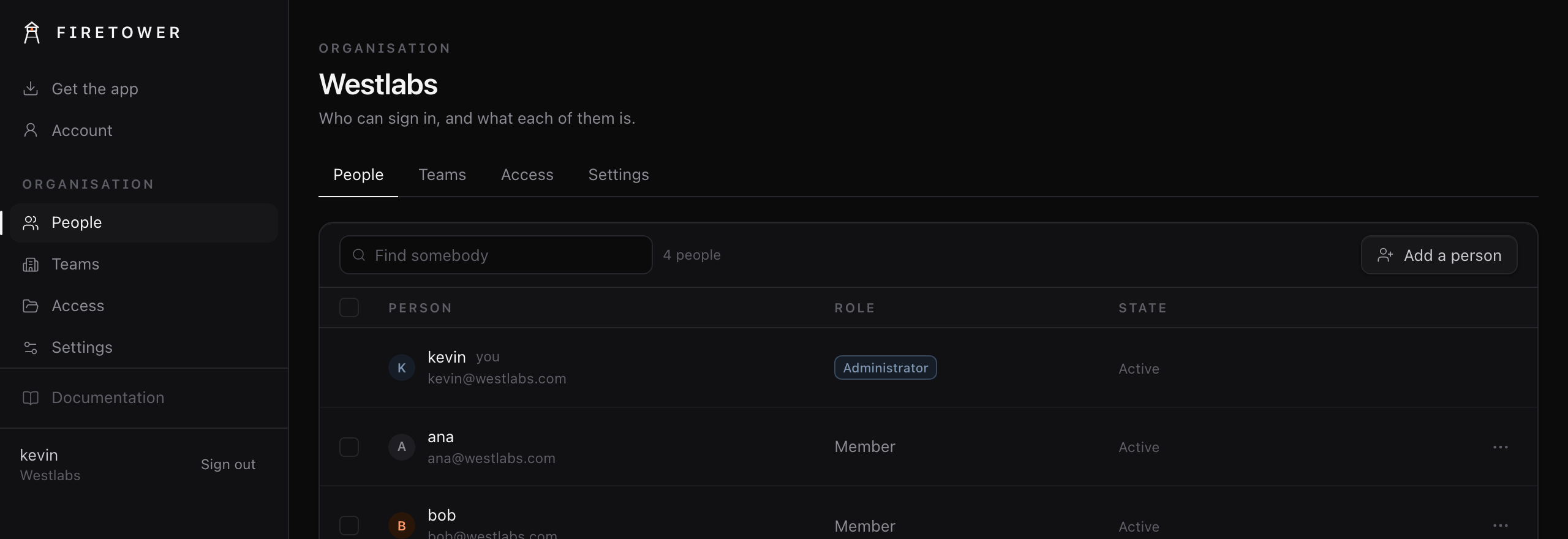
Everybody, what each of them is, and whether they have been in yet.
The State column is worth reading. Active means they have signed in and chosen their own password. Has not signed in yet means the password you handed them is still the one in force.
#Add a person
Press Add a person. Three things are asked, and only the third can be changed afterwards.
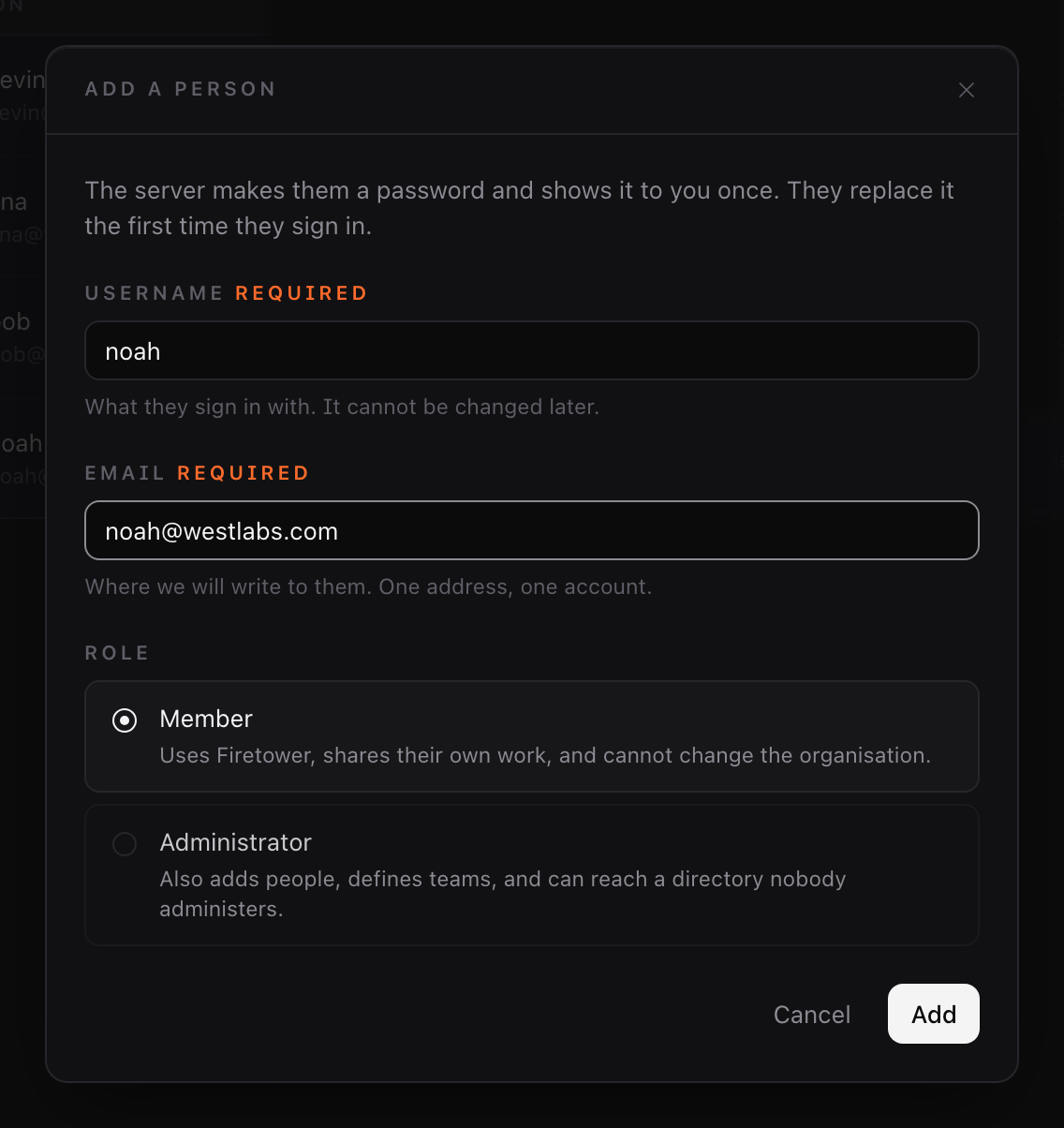
No password field. The server makes that one.
Username is what they sign in with, and it is permanent. It is also what
their own space is named after, so everything they own ends up filed under
u/their-name.
Email is where you will write to them. One address, one account.
Role is Member or Administrator, and it is only about running the organisation. An Administrator adds and removes people, manages teams and directories, and upgrades Firetower. Neither role grants access to anybody else's work: that is decided separately, and Permissions is the page for it.
#The password, shown once
Press Add and you get it. Once.
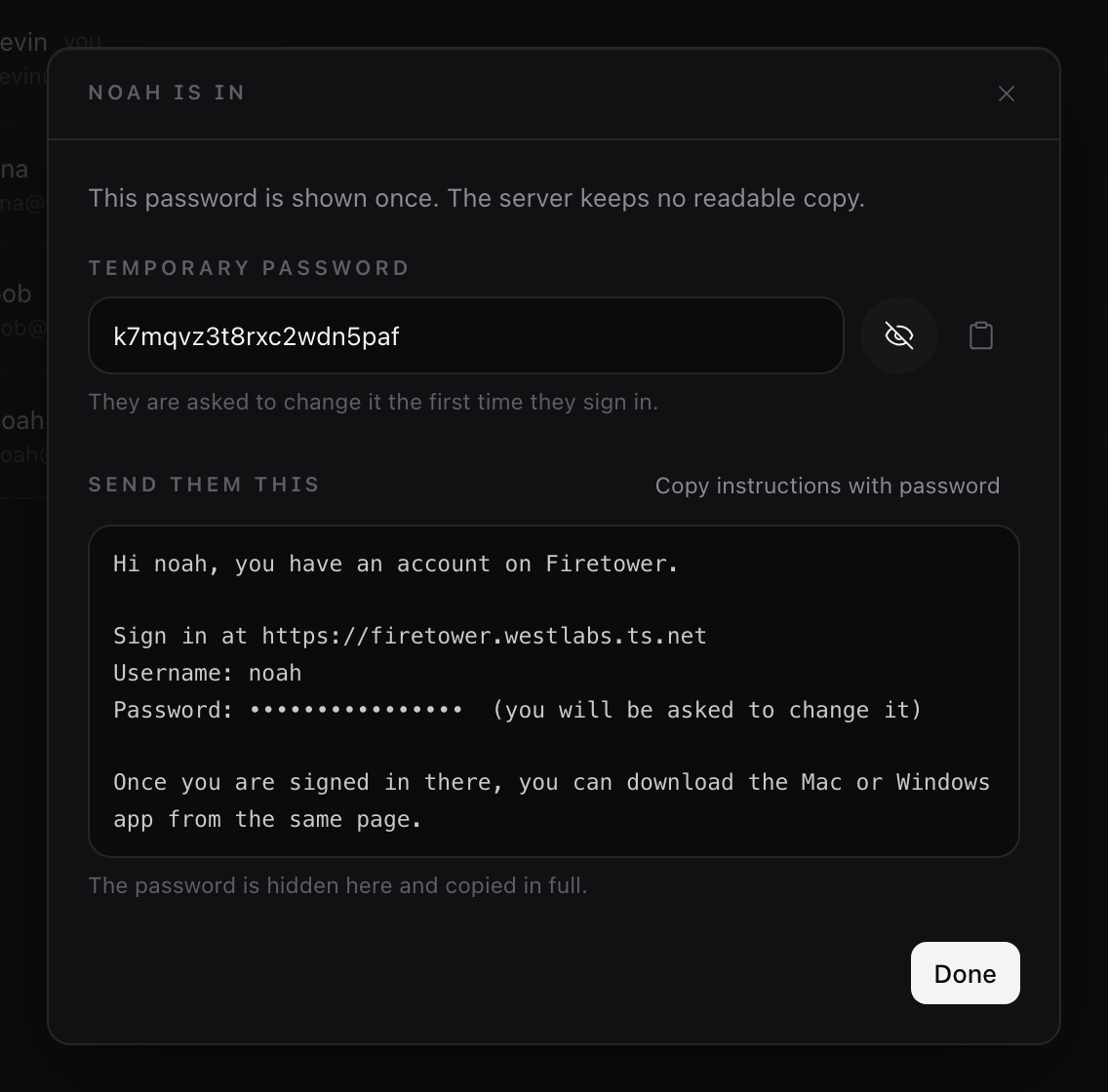
The password, and a message to send with it. The password is masked in the message on screen and whole on the clipboard.
The server keeps only a hash of it, so there is no second chance to read it and no screen anywhere that will show it again. There is nothing to recover if you close this, though: Reset password on their row makes a new one and hands it over the same way.
Copy instructions with password is the button to use. It gives you the whole note, with the address of this Firetower, their username and the password in it, ready to paste into whatever you send them.
Note
Send the password over something that is not the same channel as everything else, if you can. Whoever reads it before they do can sign in as them, right up until they replace it.
#Until they choose their own
The account exists and works, and the row says what is still outstanding.

Not a pending invitation. The account is live; the password is just still the one you chose.
When they sign in, this is the only thing they are offered.
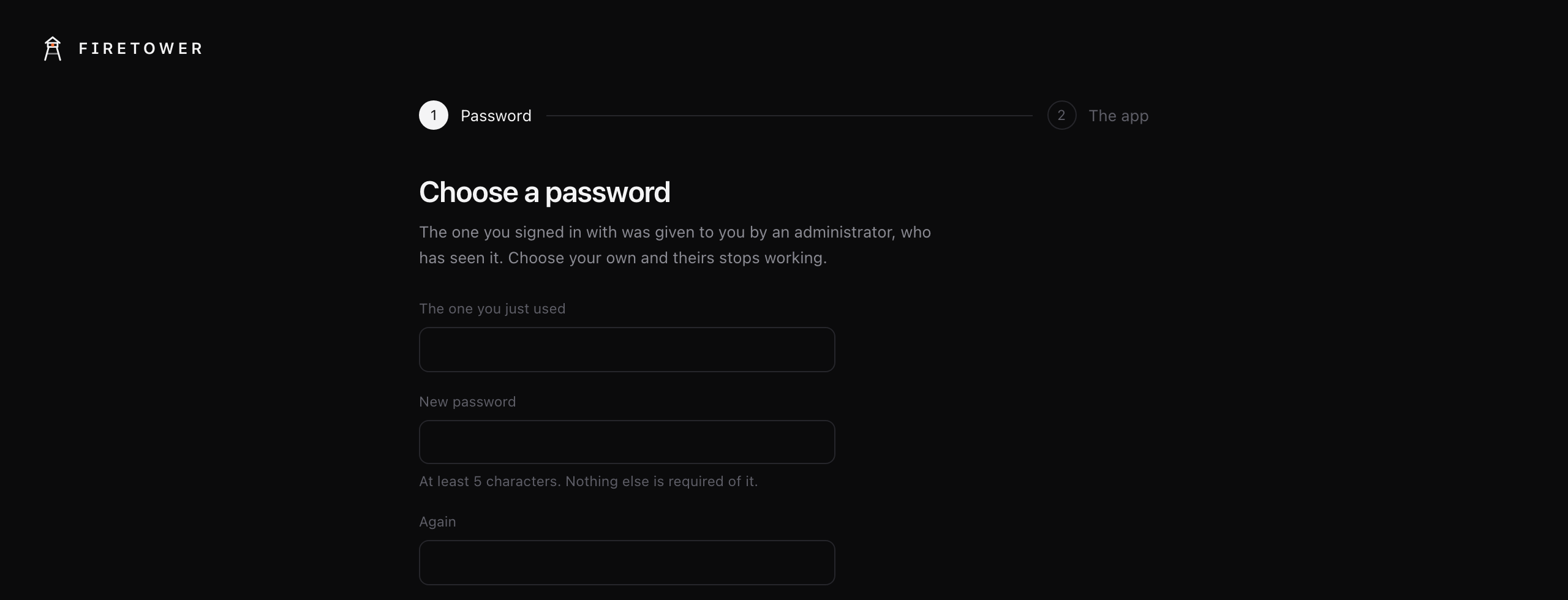
They are signed in while this is on screen, and the server refuses everything except replacing the password.
Saying so plainly: a password somebody else chose is a password somebody else has seen, so Firetower treats the account as not yet theirs until they have replaced it. The moment they do, every session of theirs ends, on every device they had it open on, and the password you handed over stops working.
#On the apps
Replacing a password happens in the web administration panel and nowhere else. One screen that decides whether somebody can get in at all is enough to keep correct, and the panel is the surface that is always reachable and always the same version as the server behind it.
So the Mac, Windows and phone apps do not offer the form. They sign in, notice, and send you to the panel.
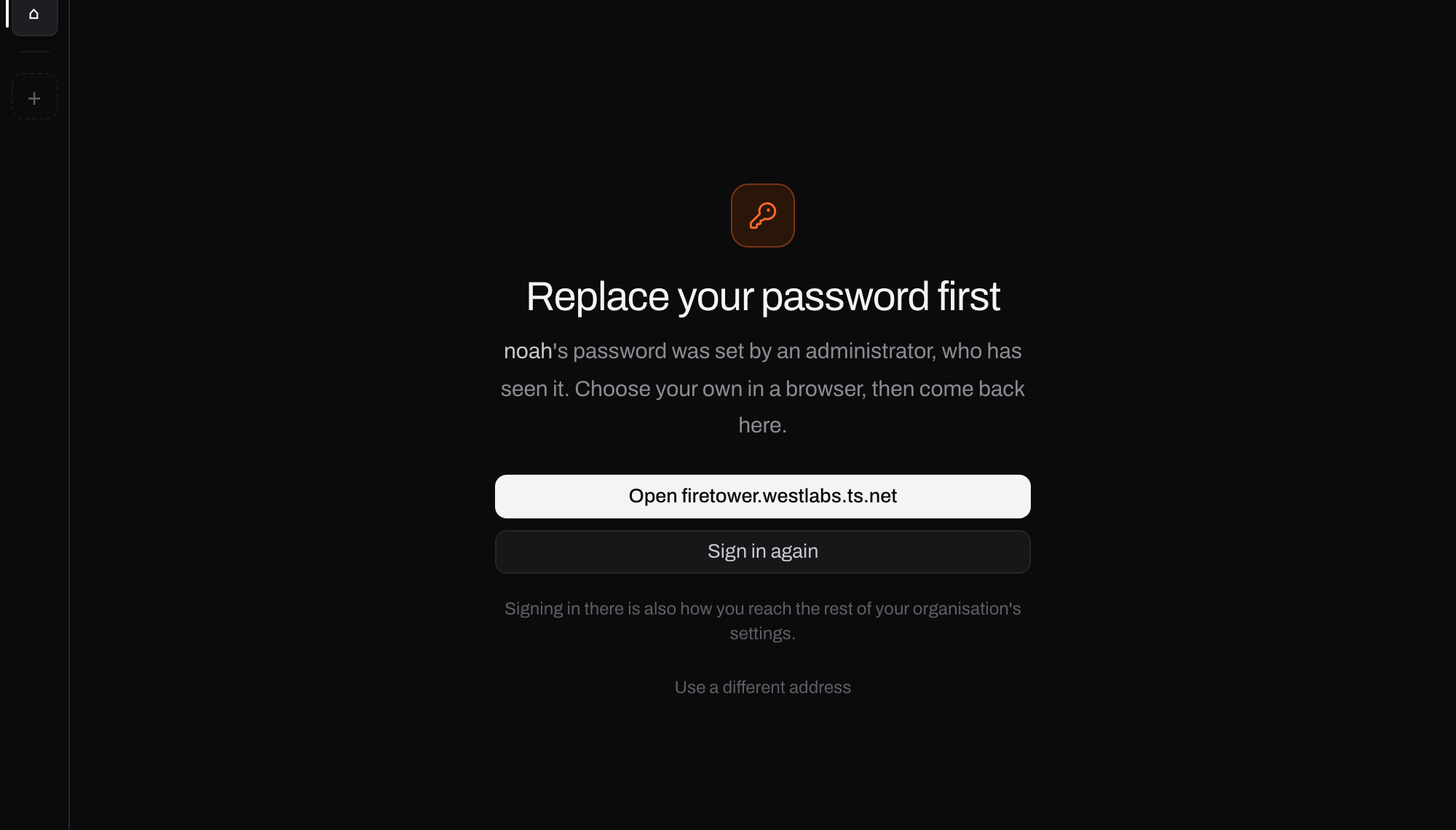
The address on the button is the one that was typed to find this Firetower, which is the one proven to work from that machine.
The same screen appears mid-session if an administrator resets a password while the app is open. It does not say "first sign-in", because it is not always one.
#Resetting a password
The row menu, Reset password. It is the same hand-over sheet, with the same rules: a new temporary password, shown once, and the account is back to needing it replaced. Every session of theirs ends immediately.
That is also the answer to somebody locking themselves out, and the only one. There is no email link and nothing to recover: an administrator resets it, and it is handed over the way the first one was.
This loses work
If the last administrator forgets their own password there is nobody left who can reset it. Make a second administrator before you need one.
#Switching somebody off, and removing them
Switch off stops them signing in and keeps everything they made. It is the one to reach for when somebody is away, or when you are not yet sure.
Remove shows you what goes before it happens. Everything filed in their personal space is destroyed with the account, except a machine, which moves to Shared rather than vanishing from the fleet. Nothing of theirs can be handed to a colleague, by anybody, including an administrator: that is the one outcome its owner never agreed to, and Permissions explains why it is deliberate.
The one question it does ask is who takes over a directory they were the last administrator of, because that one really is the organisation's to answer.
#Teams
A team is a list of people with a name on it, and the only thing it is for is being given access to something. Anybody can be in as many as you like, and what somebody reaches is always the most generous of everything they belong to.
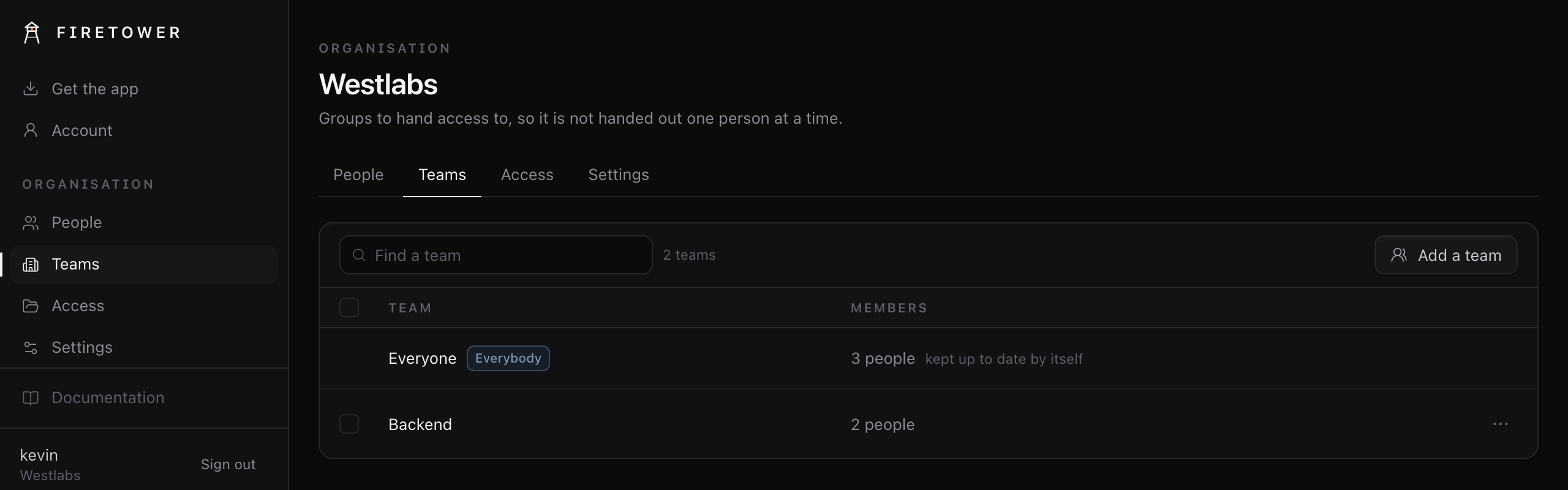
Organisation → Teams. Press Add a team, name it, and put people in it.
Everyone is there from the start and is exactly what it sounds like. It has no membership list to maintain: whoever is in the organisation today is in it, including the person you added five minutes ago. It cannot be renamed, emptied or removed.
Everything that can be shared can be shared with a team, the same way it can be shared with one person, and the team is read at the time rather than copied. So somebody who joins Backend next month reaches what Backend reaches, without anybody revisiting the things it was given.
That is the whole reason to make one. If you find yourself naming the same three people on thing after thing, make a team and name the team instead.
#What they can reach on their first day
Nothing of yours.
A new person gets their own space, u/their-name, and whatever has been shared
with the Everyone team. They can add their own machine, connect their own
GitHub account and start their own workspaces straight away.
Letting them at anything else is what the next page is about: Permissions.